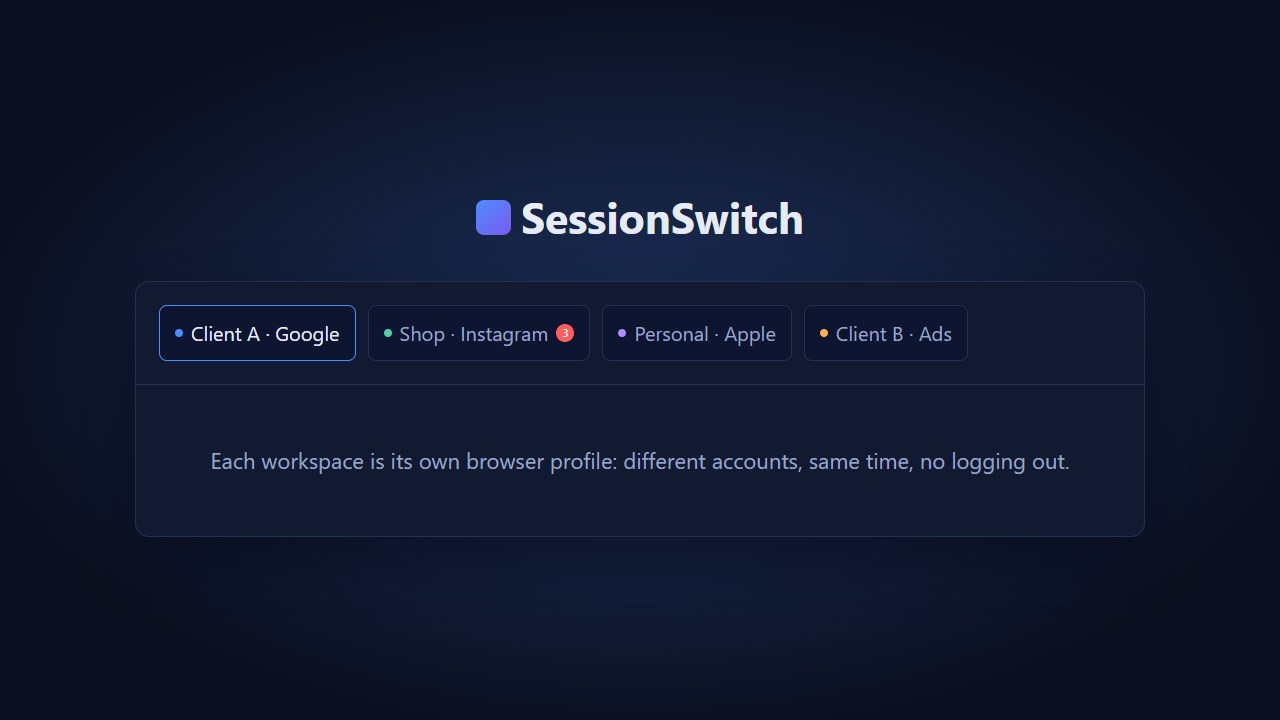
The easiest way to keep multiple browser accounts signed in on a Mac is to give each account its own browser profile. Separate cookies and website data let a work Gmail account and a personal Gmail account remember their own logins. If you manage several clients and regularly switch between their dashboards, SessionSwitch keeps those profiles together in one Mac app.
Decide which accounts need their own profile
Start with two categories you can recognize instantly, such as Work and Personal. If you work for clients, create a workspace for each client whose accounts you use regularly. Keep that client's inbox, calendar, and dashboard in the same workspace. You'll have fewer places to check when you need to pick up where you left off.
Google's account switcher can handle several Google accounts in one browser. If that's all you need, use the profile menu in Gmail or another Google service. Google notes that a new window or service can sometimes apply the default account's settings when several are signed in. Separate browser profiles make the starting identity clearer. Google's guide to signing in to multiple accounts
Safari also has profiles. On Safari 17 and later, a profile keeps its own history, cookies, website data, and tab groups. Open Safari Settings and look for Profiles if you want to set up work and personal browsing there. Apple's guide to Safari profiles on Mac
Set up SessionSwitch for work and personal logins
- Name each workspace for the person or business it belongs to. “Personal Gmail” and “Client A” are easier to recognize at a glance than “Google 1” and “Google 2.”
- Open the relevant sites inside each workspace and sign in there. Keep the everyday tabs together. Before sending a message or changing an account setting, glance at the workspace name and the account avatar on the site.
- Quit and reopen the app once. SessionSwitch restores the tabs and keeps each workspace's site data on your Mac. Services can still expire a session or ask you to verify your identity again.
- Try the quick switcher. Press Option-Command-K and start typing the workspace name. On a Mac with Touch ID, you can also lock a workspace so it requires Touch ID or your Mac password to reopen.
Visit the SessionSwitch product page for the 14-day Mac trial. It runs on macOS 14 Sonoma or later on Apple silicon and Intel.
Route links only when the destination is predictable
SessionSwitch can open incoming links in a workspace based on their domain when it's your default browser. A dedicated client portal is a good first rule. Open one harmless link from Mail or your calendar and confirm that it lands in the right workspace.
Keep shared domains such as gmail.com out of broad routing rules when several workspaces use them. A domain rule sees the website address. Your workspace name tells you which account you intend to use. Choose the workspace yourself when the same site serves several clients.
Can I use two Gmail accounts on a Mac at the same time?
Yes. Sign in to one Gmail account in each workspace and both can stay open. Test your regular sign-in method during the trial. Some sites require extra verification or restrict certain embedded-browser passkey flows, so use the sign-in and approval options allowed by your account administrator.
Where do the logins and downloaded files go?
SessionSwitch keeps each workspace's cookies and site data on your Mac. If you save statements or reports for several clients, set a different download folder per workspace. Open a harmless download from each one and check that it went where you expected. Browse the Rivets Mac and Windows apps catalog for other desktop tools.