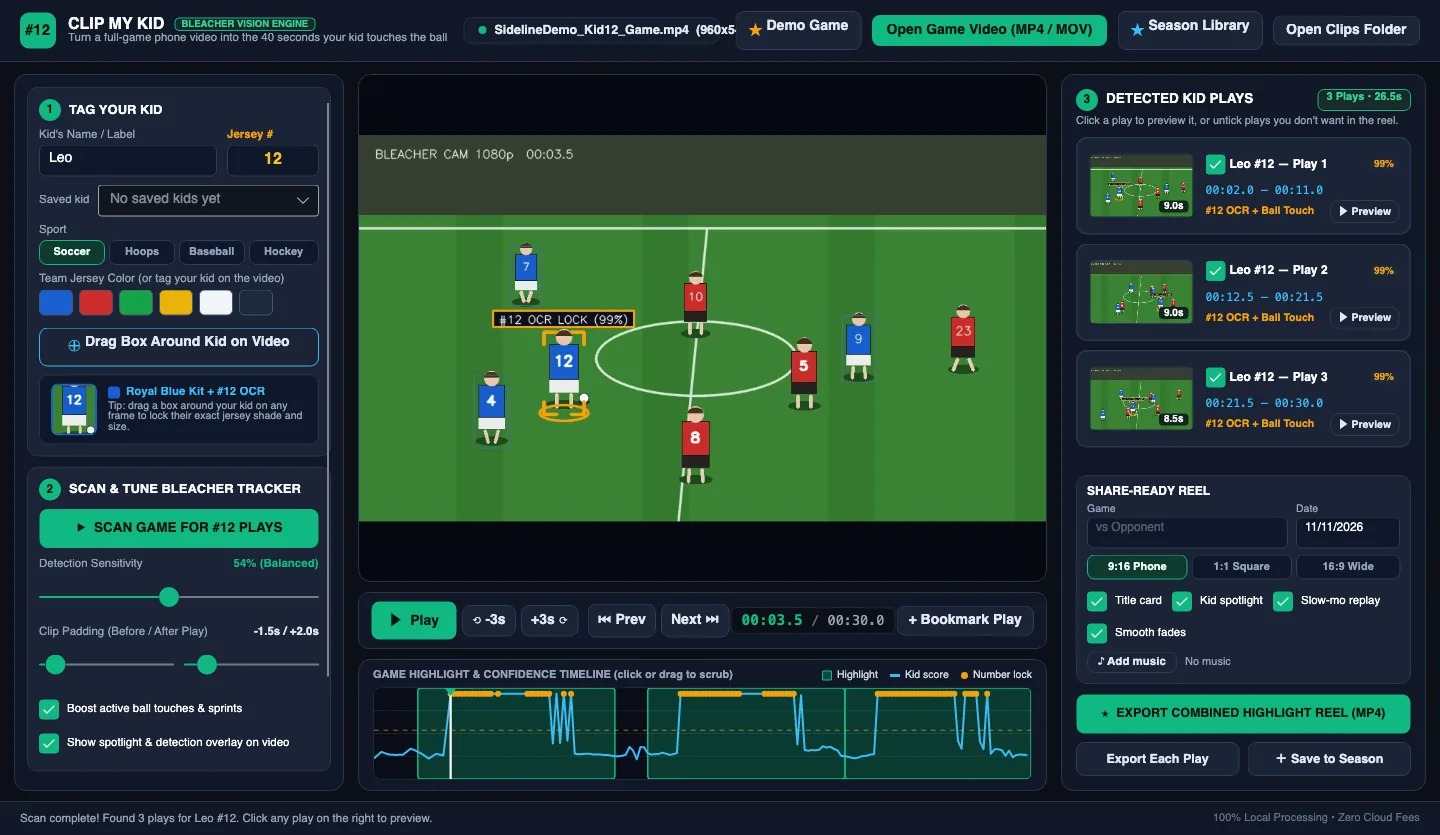
To make a sports highlight video of your kid, start with a full game recording and pick a few plays that show what they did. Keep a few seconds before and after each play so family can follow the action. ClipMyKid for Windows and Mac scans MP4 and MOV game footage and suggests moments to review, so you don't have to scrub through the whole game by hand.
How to record a kids’ soccer game for highlights
If you're filming from the sidelines, set up near midfield and a little above field level when the venue allows it. A tripod helps keep the picture steady. Frame the ball and the nearby players so you can see where a pass came from and where it went. Hudl’s soccer recording guide shows how camera height and framing affect what you can see.
Before kickoff, record a short sample and see if you can read your child’s jersey number when they turn away. A wide view is useful for showing the play, but the app has less to work with if every player looks like a dot. Check your team or venue’s rules before recording or sharing youth game footage.
Find your child’s plays in the full game video
- Open the game. Load the MP4 or MOV on your computer. Enter your child’s jersey number and choose their team color.
- Tag your child in one clear frame. Pause where you can see their number and draw a box around them. A frame where they’re standing apart from teammates is easier to tag.
- Scan, then review. Play each suggestion and uncheck clips that show the wrong player or miss the action. If you know a play the scan missed, jump to that moment and use Bookmark Play to add it.
In our Windows test with the built-in soccer demo, ClipMyKid found three plays for number 12 and exported a vertical MP4. Results on real games depend on the footage. If the jersey is hidden in a crowd, review that stretch yourself and bookmark anything you want to keep.
Give each clip enough time to tell the story
For a goal, start far enough back to show how your kid got the ball. For a save, leave in the shot and what happened to the rebound. A good highlight can also be a pass into space or a defensive run. Adjust how much footage ClipMyKid keeps before and after the play, then watch the preview once without pausing. If you lose track of your kid among teammates, turn on the optional player spotlight.
Export a reel for family or save clips for the season
Choose 9:16 vertical if most people will watch on a phone, or 16:9 wide if you want to keep more of the field in view. If the vertical export cuts off where a pass goes, try wide. ClipMyKid also offers a 1:1 square export. Vertical and square are both supported by YouTube Shorts. If you plan to make a season reel, save the game and mark favorite plays in the Season Library so you can find them later.
Can I make a sports highlight video for free?
Yes. The free version of ClipMyKid lets you scan a game, edit the suggested clips, and export a finished reel. Free exports have a small “Made with ClipMyKid” watermark; a paid license removes it. Your footage is processed on your computer, with no video upload required. Get the free ClipMyKid download for Windows or Mac and start with one game you remember well, or try the built-in demo first.