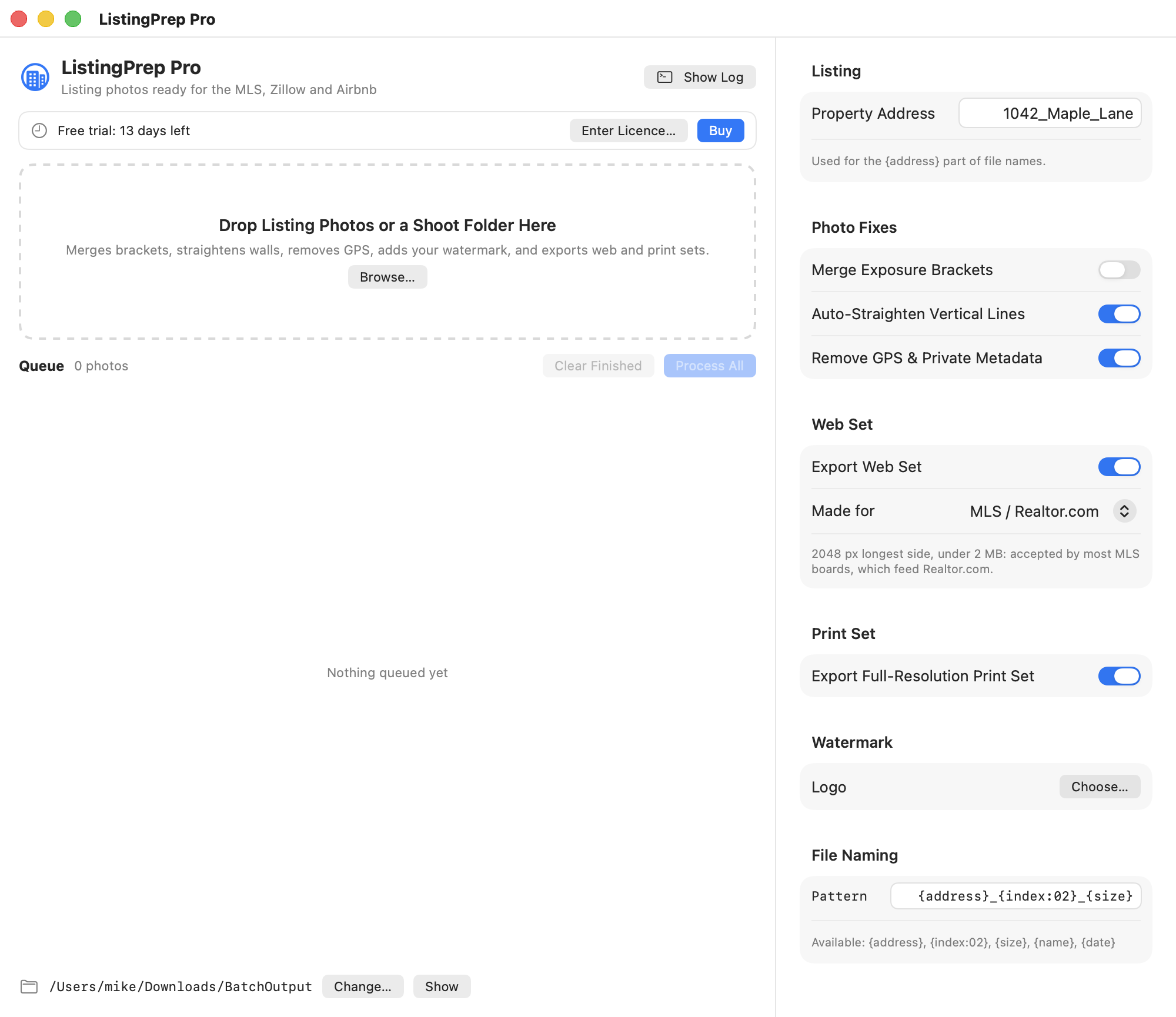
To batch resize real estate photos for MLS, check your MLS's image requirements, export a set of copies that meets them, and inspect the first few files before uploading. Keep the high-resolution originals and save a different export preset for each destination. ListingPrep Pro handles this workflow on a Mac and can also merge bracketed exposures, straighten photos, and remove GPS data from delivery copies.
What size should MLS listing photos be?
Use the current instructions for the MLS you submit to. Check dimensions in pixels, maximum file size in MB, accepted formats, photo order, and any branding restrictions. Pixel dimensions and file size are separate checks. Two JPEGs with the same dimensions can take up different amounts of storage.
For example, MLS Now's listing guide asks for JPEGs, recommends at least 1024 × 768 pixels, and sets a 6 MB limit. Airbnb recommends at least 1024 × 683 pixels and favors landscape images. These are examples of why a saved setting for one portal may need changes for another. MLS Now listing input guide and Airbnb's photo guidance
Build a batch for one listing
- Collect your approved shots. Keep the raw originals and edits in the shoot folder. Make an export folder named for the destination, such as MLS Upload.
- Finish the exposure and crop decisions first. If you shot exposure brackets, use ListingPrep Pro to merge the exposures from a single composition. Check the window view and walls at full size. Moving curtains, trees, and people can create visible artifacts in a blend.
- Choose a portal preset or enter your own limits. ListingPrep Pro includes MLS / Realtor.com, Zillow, and Airbnb presets. Check the actual destination's requirements before saving a custom width, height, shape, or size limit.
- Export two or three photographs before running the shoot. Include a wide exterior, a vertical room, and a photo with fine detail. Review the aspect ratio and edges, then check dimensions and file size in Finder.
Open the ListingPrep Pro tools and trial on the Batch Studio page to try it with a recent shoot.
Make a clean upload set and a separate client set
Use a clean set for feeds with branding restrictions. ListingPrep Pro can add a watermark to copies when the destination permits it. Give those copies their own folder so they can't be picked by accident when you upload to MLS. ARMLS, for example, lists unapproved watermarks among its media rejection reasons. ARMLS media instructions
The app can strip GPS and camera metadata from delivery copies and produce a full-resolution print set alongside the smaller web set. If you use an image description or credit that matters to a client, verify the metadata you intend to keep. Review the photo itself for private details such as mail, alarm panels, or paperwork.
Can I reuse the same preset for every property?
Reuse a preset for the same destination as long as its requirements still fit. Review the first exterior and any portrait shots on each property. Those are the images most likely to crop differently in a thumbnail. If a portal changes its file limits, update the named preset and check another small batch before reusing it.
For a repeatable way to test, name, and hand off those settings, see the Batch Studio workflow guide. If you also keep old shoots on several disks, our external drive photo archive guide covers how to find and verify the original files later.