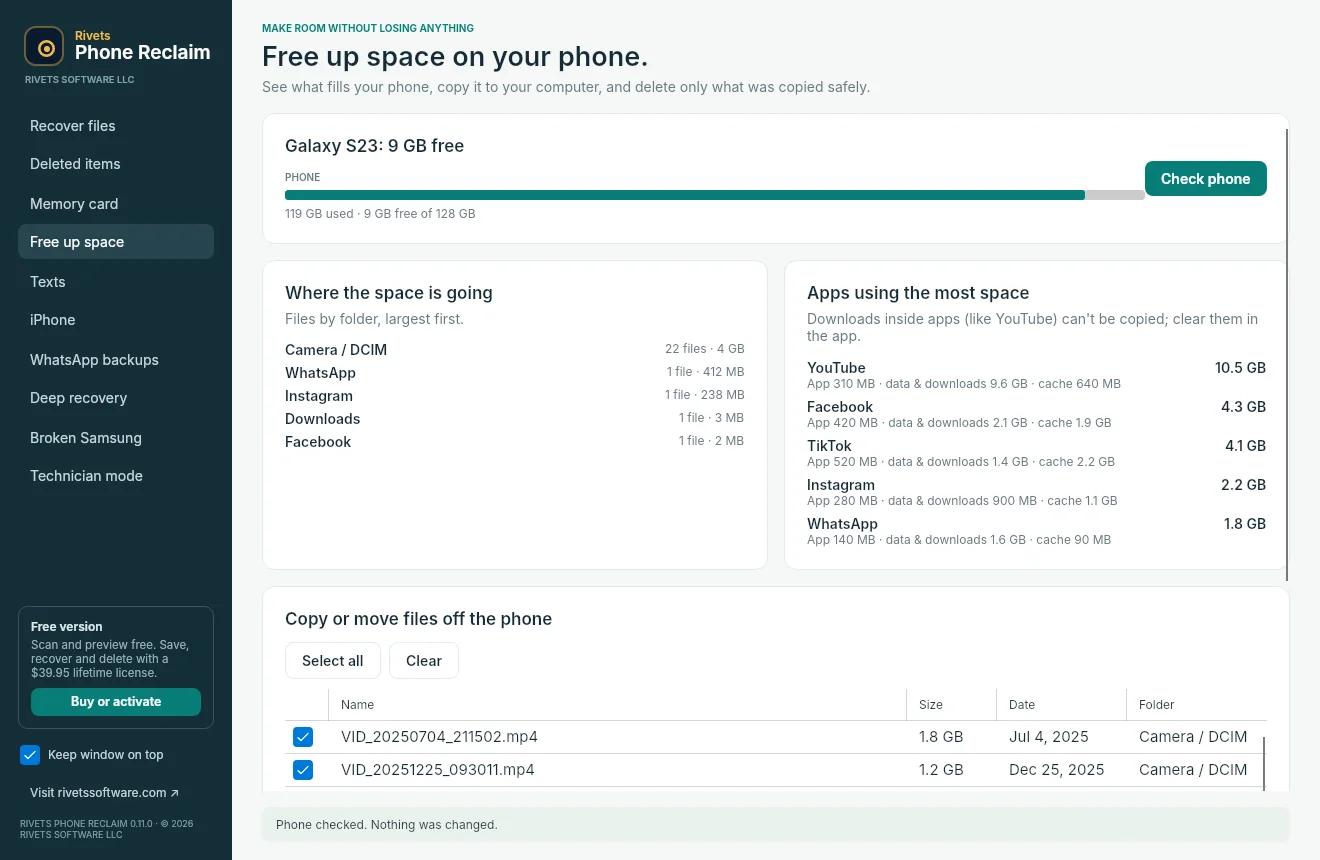
If you need to free up Android storage on a computer, the useful workflow is not simply “delete large files.” It is to find what is taking space, copy the files you want to keep, verify the copy, and only then decide what to remove from the phone. Rivets Phone Reclaim is a Windows and Mac desktop tool built around that sequence.
It also includes SD-card photo recovery and other phone-data tools, but those solve different problems. This guide explains where the product fits, what to check before using it, and why recovering a memory card is not the same as retrieving a permanently erased file from modern phone storage.
Start with the problem you actually have
“My photos are gone” and “my phone is full” need different starting points. A full phone may still contain every file you want to keep. A deleted image may be in a trash folder, a backup, a removable memory card, or storage the tool cannot recover.
Phone Reclaim's product page separates these situations. Use that description before paying for a license or running the wrong workflow. If the job is simply moving existing Android photos and videos to a computer, begin with copying and verification. If the files were deleted from a microSD card, review the dedicated memory-card recovery tool.
Being specific about the problem helps avoid an unrealistic expectation before you even connect the device.
Find the large files before choosing what to move
The storage-cleaner view is designed to show where space is being used and help you work through large files. The product describes folders such as Camera, Downloads, WhatsApp, and other media locations, with the files and access actually available depending on the connected phone.
Look at the files before selecting them. A large video may be something you want to preserve; a folder name alone does not tell you whether everything inside is expendable. Choose a destination on your computer that you can recognize and that has enough space for the copy.
For an Android photo backup tool for PC and Mac, a clear destination matters. The copy is more useful when you can find it again after the phone is disconnected.
Copy, verify, then decide about deletion
Phone Reclaim describes checking copied files with SHA-256 before its copy-then-delete workflow removes the phone copy. It also provides a copy-only choice and stops when the computer is running low on space.
Treat deletion as a separate decision. After copying, review the destination and open a selection of the files you care about. Keep the additional backups you need for important photos and documents; transferring a file to one computer is not the same as creating a complete backup plan.
You can begin with a small set of files to understand the workflow. There is no need to start by selecting everything on the device.
Understand when SD-card recovery is relevant
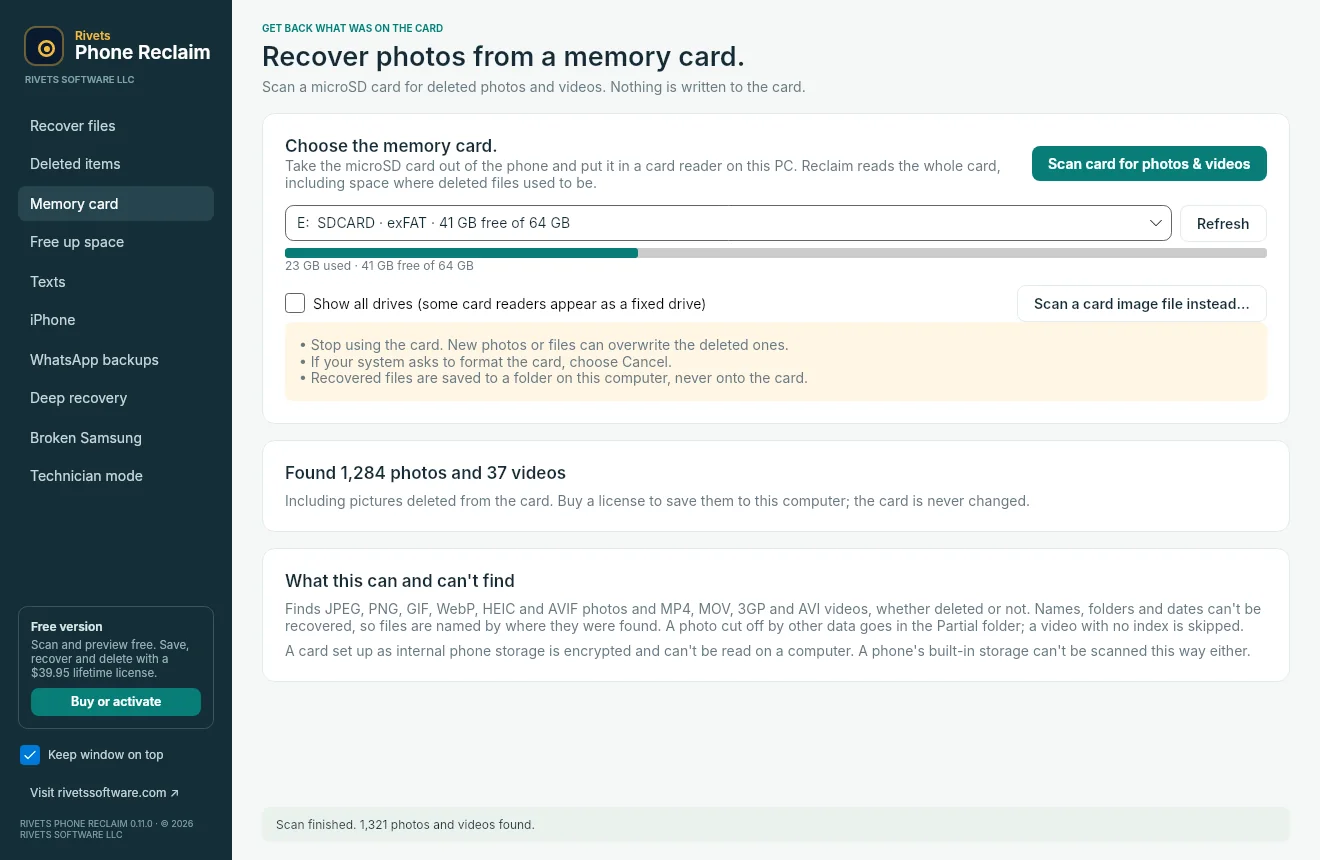
For deleted photos on a removable microSD card, the product offers a read-only scan through a card reader. It searches the card for supported photo and video data and attempts to rebuild what remains. The page lists common formats including JPEG, PNG, HEIC, WebP, MP4, and MOV.
Recovery is not guaranteed. If important files were deleted, avoid adding more data to the affected card while deciding what to do, since new writes may overwrite data you hoped to recover. Use the free scan and preview to understand what the tool finds before choosing a paid recovery workflow.
An SD card photo recovery tool for Windows and Mac addresses that removable-card situation. It should not be confused with a promise to recover any erased file from any phone.
Know the phone-access limits
A broken screen does not automatically mean a computer can access the phone. The device still needs to allow the relevant connection. Phone Reclaim's product information explains that access may be possible in some circumstances, but not in every case.
Similarly, the tool does not promise to recover permanently erased internal-storage files or data from a factory-reset phone. Existing cloud or computer backups and the phone's own trash or recovery options may be the relevant places to check instead.
The product also describes Android text-cleanup tools for Android 10 and later and ways to preserve existing messaging backups. Review the exact workflow and permissions before using those features; do not assume a desktop connection exposes every app's data.
Check the platform and license before starting
Phone Reclaim runs on 64-bit Windows 10 and 11 and macOS 14 or later on Apple silicon and Intel. Scanning and previewing are free. Saving, recovery, and deletion tools require a paid license. The product page lists a $39.95 lifetime license for three phones and two computers.
Use only the official Phone Reclaim download section. It provides separate Windows and Mac installers. Choose the one intended for the computer you will use.
Frequently asked questions
Is Phone Reclaim an Android app I install from Google Play?
The main product is a desktop tool for Windows and Mac. Follow the official site's setup instructions for the phone connection and any feature-specific requirements.
Can it recover every deleted photo?
No. The result depends on where the file was stored, what happened to it, and what data remains accessible. Review the product's limits and use the scan or preview where available.
What if I need to search archived external drives instead?
That is a different task. Our GhostShelf guide explains cataloging external-drive contents so you can find the right disk later.
Visit the Phone Reclaim product page, choose the workflow that matches your situation, and begin with a small, reviewed copy before making any deletion decision. If your missing photos were on removable storage, follow our guide to recovering deleted photos from an SD card.