
To search offline external drives on Mac, you need a record of what was on each drive before you unplugged it. GhostShelf creates that searchable catalog, or “ghost,” so you can look for a file and see which external drive to reconnect.
This is especially useful when several project drives live in a drawer and their names no longer tell you where a particular image, clip, or document went. GhostShelf is a native Mac app for Apple silicon and macOS 14 Sonoma or later. Here is how to make the catalog useful without mistaking it for a backup of the files themselves.
Give each drive an identity you will recognize
Connect an external drive and let GhostShelf catalog it. Give it a useful name and color so a later search result points to a physical drive you can identify.
A name based only on capacity may not help when you own several similar disks. Use a label that matches how you organize the actual drive collection. If you change the physical label, keep the relationship understandable in the app.
The product describes filenames and folders becoming searchable first, while thumbnails, text, and tags fill in afterward. If you eject early, indexing can resume when the drive is connected again. For a first test, use a familiar drive and look for a file whose location you already know.
Search the catalog after the drive is unplugged
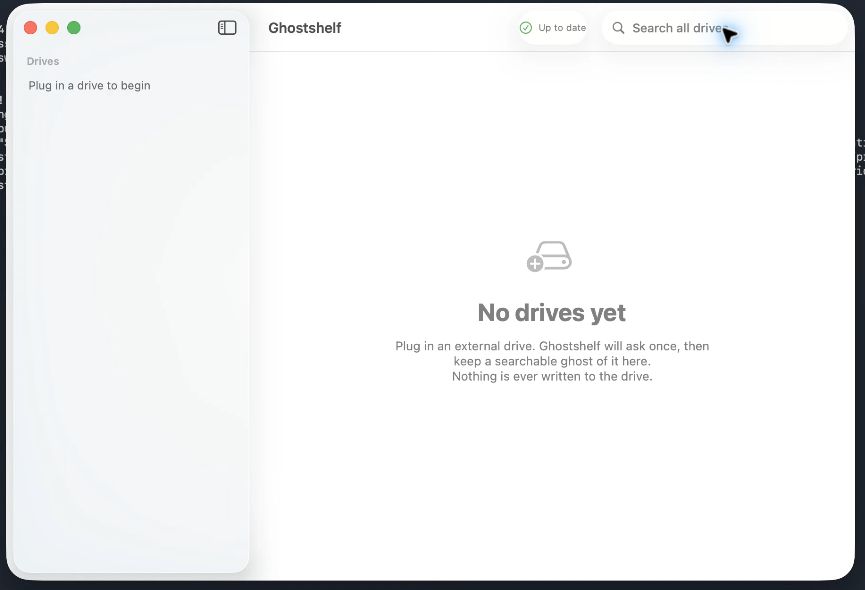
GhostShelf's search can combine results from mounted and disconnected drives. The menu-bar app uses Option-Space to open its search interface, and results identify the relevant drive along with information such as the file path and available previews.
An offline external drive catalog for Mac is useful because it changes the first step. Instead of connecting several disks just to discover which one might contain the file, you search the catalog and then retrieve the drive the result identifies.
The actual file still lives on its original storage. A result for a disconnected drive tells you where to look; it does not mean the app has copied the full file onto the Mac.
Use the kind of search that fits the clue
Sometimes you remember part of a filename, a folder, or a year. Start there. If you remember what was written inside a document or what a picture looked like, the paid editions offer additional search tools described on the product page.
Those tools include document text, OCR, AI tags, and optional visual search. The visual model is optional, and available capabilities depend on the edition and setup. Begin with a known example so you can understand which information has already been indexed and which passes still need time to complete.
For a searchable photo and video drive catalog, that distinction matters. A file name can be available before a thumbnail, text extraction, or visual-search information has finished processing.
Reconnect the right drive when you need the file
If the drive is present, the product describes opening the file or revealing it in Finder. If it is disconnected, the result identifies which drive to plug in. GhostShelf can then open the selected file when that drive appears.
This is a practical workflow for archived creative projects: find the record, retrieve the disk, connect it, and work with the original file. It also helps when the goal is simply browsing what a drive contains before deciding whether it is the one you need.
Keep the physical drive labels and storage locations organized as well. A good digital catalog is easier to use when the matching hardware is easy to find.
Keep cataloging separate from backup
GhostShelf stores an index and small thumbnails, not a complete backup of your media and documents. If a drive fails, the catalog may tell you what was there, but it does not restore the original files.
Continue using an appropriate backup process for the data itself. The catalog is a finding tool, not a replacement for a second copy of important work. Its usefulness comes from making the collection searchable even when the original disks are not currently connected.
The product also describes on-device indexing and search, and a design that does not write sidecar files or hidden catalog folders onto the external drive. Review the current product page for the complete privacy and storage details.
Start free with two drives
The current GhostShelf page offers a free edition for two drives, with name and folder search, thumbnails, and the plug-in/open workflow. Personal and Pro are paid editions with additional capabilities; use the live pricing section for their current features and terms.
You can test the basic idea before choosing an upgrade. Catalog a familiar drive, disconnect it, and search for a known item. Then reconnect the drive and confirm how the file-opening workflow fits your setup.
Frequently asked questions
Can it search a drive it has never seen?
It needs a catalog of the drive's contents first. Connect and catalog the drive before expecting its files to appear in an offline search.
Does it recover deleted photos?
That is a different job. See the Phone Reclaim guide for the separate desktop product's copying and SD-card recovery workflows.
Where do I install GhostShelf?
Use the official GhostShelf page or its Mac download. Follow the installation steps and removable-volume permissions described there, then begin with a drive you know well. For a naming and backup routine, see our guide to organizing photos on external hard drives.