How to Scan Old Family Photos into a Searchable Archive
To scan old family photos into a searchable archive, start with a flatbed scanner at 600 DPI, save each photo as a TIFF or high-quality JPEG, name the files with the people, place, and year in them, and then run the scans through software that reads the handwriting on the back and indexes every word. The scanning is the slow part. The searching is what makes the whole project worth doing, because an archive you can search by a name, a town, or a year is the difference between a folder full of files and a family history anyone can actually use.
Why most photo scans end up unfindable
Most families get the scanning done and then stall. The photos land in a folder named "Scans" or "Photos 2026" with filenames like IMG_4471, and six months later nobody can find the one photo of Grandma at the lake house. The pictures are safe from fading, but they are no more useful than the shoebox was. A searchable archive fixes that by treating every scan as a document with words attached to it: the names on the back, the date written in the corner, the town in the caption, and the story someone told about it at a reunion.
The goal is not perfection. It is a system where a grandchild can type "Ruth Hot Springs 1947" and get the right photo in seconds, instead of opening two hundred files one by one.
Scan old family photos into a searchable archive: the setup
Before you scan a single photo, decide on three things: resolution, file format, and file names. These choices are hard to redo later, so get them right at the start.
Resolution. Scan prints at 600 DPI. That is high enough to reprint a 4x6 at a larger size and to crop in on a face without it turning to mush, and it keeps file sizes manageable. For small wallet photos or anything you may want to enlarge, use 1200 DPI. Scanning at 300 DPI is fine for screen viewing only, but you will regret it the first time someone wants a print.
File format. Save the master scans as TIFF if you have the disk space, or as high-quality JPEG if you do not. Keep the masters in one folder and never edit them. If you need smaller copies to share or upload, make those from the masters and keep the originals untouched.
File names. A file name is the first layer of search. Use a simple pattern and stick to it, for example `1947-07-04-martha-ruth-hot-springs.jpg`. Year first, so the files sort in order. People, then place. If you do not know the date, use your best guess and mark it, like `1940s-martha-unknown.jpg`. A consistent name beats a clever one every time.
Scan the backs too
The back of an old photo is often worth more than the front. That is where someone wrote the names, the date, the occasion, and sometimes a whole sentence about what was happening. Scan every back, even the blank ones, and keep each front and back together. The simplest way is to name the back scan the same as the front with `-back` added, for example `1947-07-04-martha-ruth-hot-springs-back.jpg`.
If you are scanning a stack, work in small batches of twenty or thirty photos. Clean the scanner glass between batches, handle prints by the edges, and note anything fragile before it goes on the glass. Photos stuck together should never be forced apart; a photo restorer can separate them safely, and a torn print is worse than a delayed one.
A phone camera works in a pinch for a handful of photos, but a flatbed scanner is faster, flatter, and far more consistent for a whole box. If you use a phone, shoot in daylight near a window, keep the phone parallel to the photo, and turn off the flash to avoid glare.
Make the words searchable
Once the photos are scanned, the archive needs words. There are two kinds: the words written on the photo itself, and the words you add as descriptions. The first kind is the hard one, because handwriting on the back of a 1940s photo is not something a plain scanner can read.
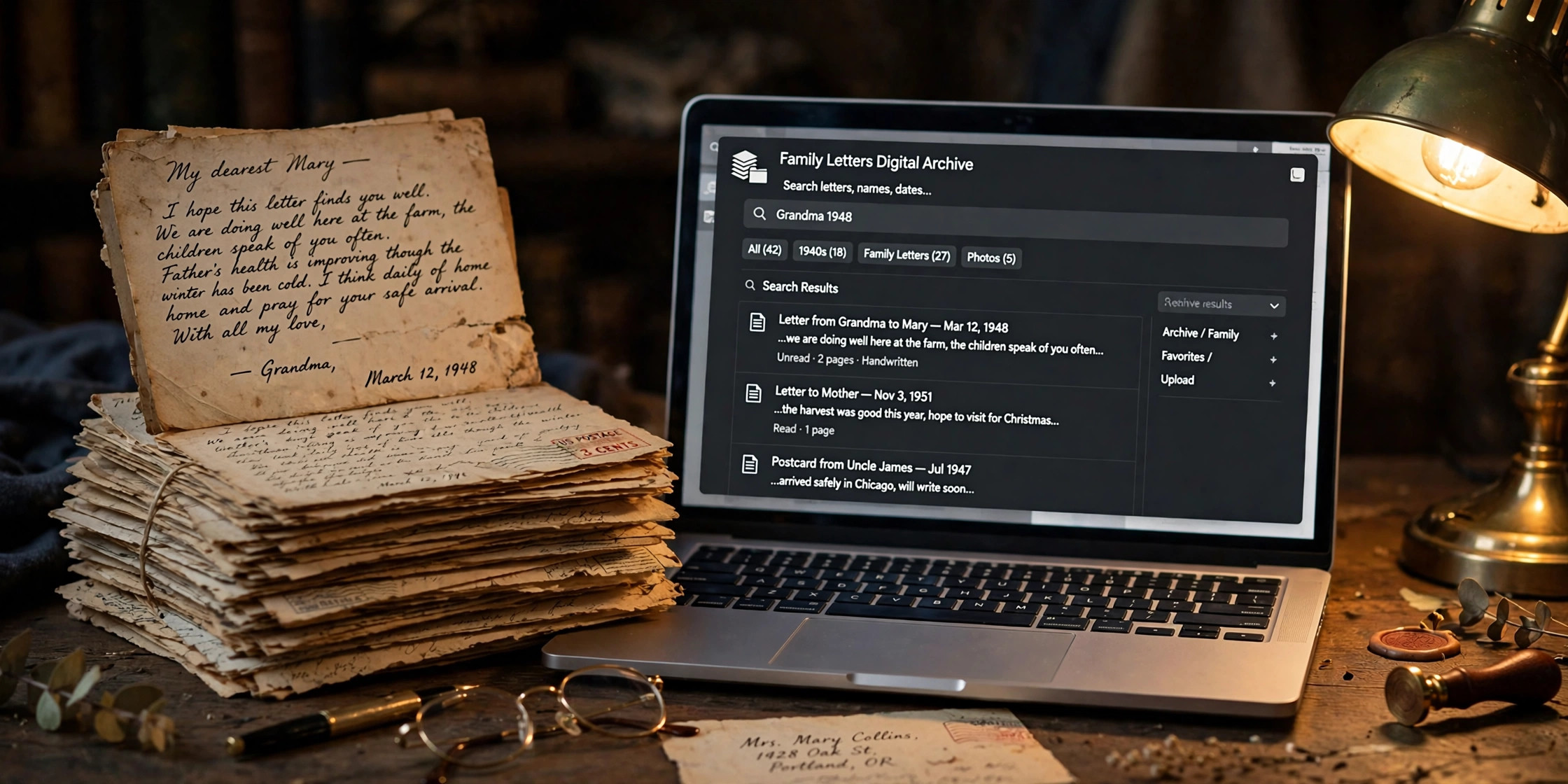
This is where software earns its keep. Kindred Ink reads scanned photos, letters, and records, including old cursive handwriting, and turns them into a private library you can search. It keeps the front and back of each photo together, so the note on the back is never lost, and it picks out dates automatically, so searching a year finds everything from that year. Every word on every page goes into a search index on your own computer, and your scans never leave your computer. Nothing is uploaded to be read.
That matters more than it sounds. The big genealogy sites can read old handwriting too, but only after you upload your family's private papers and keep paying a subscription. With a private archive, the photos, the transcriptions, and the names stay in your house, and there is no monthly fee to keep searching them.
Organize by people, places, and years
Search works best when it has something to grab onto, so give every photo three anchors: who, where, and when. Tag the people in each photo, add the place if you know it, and record the date even if it is approximate. A photo tagged "Martha, Ruth, Hot Springs, 1947" can be found four different ways, and that is the whole point.
If you are also scanning letters, the same system applies. Our guide to organizing scanned family letters by sender and date uses the same who-when-where approach, and the two archives work well together, since the same names and years show up in both. And if your box includes handwritten letters alongside the photos, see how to transcribe old handwritten letters on Windows for the same reading tools applied to cursive.
Keep the folder structure simple. One folder per year, or one folder per branch of the family, is enough. Do not build a deep tree of nested folders; the search index is what finds things, not the folder path. A flat structure with good names and tags is faster to maintain and far easier to hand to a relative who wants to help.
Share the archive without losing it
A searchable archive is only useful if the family can actually use it. Export matters. Kindred Ink can save any scan as a searchable PDF that looks exactly like the original and can still be searched, which is easy to email to a cousin or print for a reunion. It can also export your people and dates as a GEDCOM file that opens in family tree programs like RootsMagic, Legacy, Family Tree Maker, Gramps, Ancestry, and FamilySearch.
For a gift that lands, turn a selection of photos into a keepsake book: pick the scans, add a title and a dedication, and get a print-ready PDF with each scan on a left-hand page and its words typed out on the facing page, plus a cover, contents, and an index of the people in it. That is the version of the archive that ends up on a coffee table instead of a hard drive.
Back the archive up. One file holds everything you have added, and Kindred Ink keeps a small backup every week on its own, with a restore that can be undone. Keep a second copy of your scans on an external drive or in a safe place away from the house. A family archive that exists in one place is a family archive one spilled coffee away from disappearing.
A weekend plan that actually finishes
You do not need to do the whole box at once. Pick one box, or one branch of the family, and work through it in a weekend.
Saturday morning: sort the photos, set aside anything fragile, and scan the first batch at 600 DPI, fronts and backs. Saturday afternoon: name the files with people, place, and year, and drop the folder into Kindred Ink so it can read the backs and build the search index. Sunday: check the words it was unsure about, tag the people, and search for a few names to see the archive working. Then export a searchable PDF of the best ten photos and send it to the family.
That first weekend is the proof. Once the family sees a photo found by typing a name, the rest of the box stops feeling like a chore and starts feeling like a project everyone wants a piece of.
The short version
Scan at 600 DPI, save masters you never edit, name files with the year, people, and place, scan the backs, and let software read the handwriting so every word becomes searchable. Keep the archive private, back it up, and share it as searchable PDFs or a printed keepsake book.
Kindred Ink is built for exactly this job: it reads your scanned letters, records, and photos, even Grandma's cursive, and turns them into a private family library you can search in seconds. It runs on Windows 10 and 11 and on Apple silicon Macs, costs $49.99 once during the launch sale (regular price $99.99 after launch), covers 2 computers, and you can try everything free for 3 days first, with no card needed. You can read more about what it does with letters in our guide to transcribing old family letters into a searchable archive, or start from the Rivets Software home page to see everything we make.
The photos have waited long enough. Scan them, make them searchable, and give the family back its own history.